Smart Remote For Vizio TV
- 4.6
- Rating
- 1.00M
- Installs
- Free
- Price
 Analysis by App-foxy
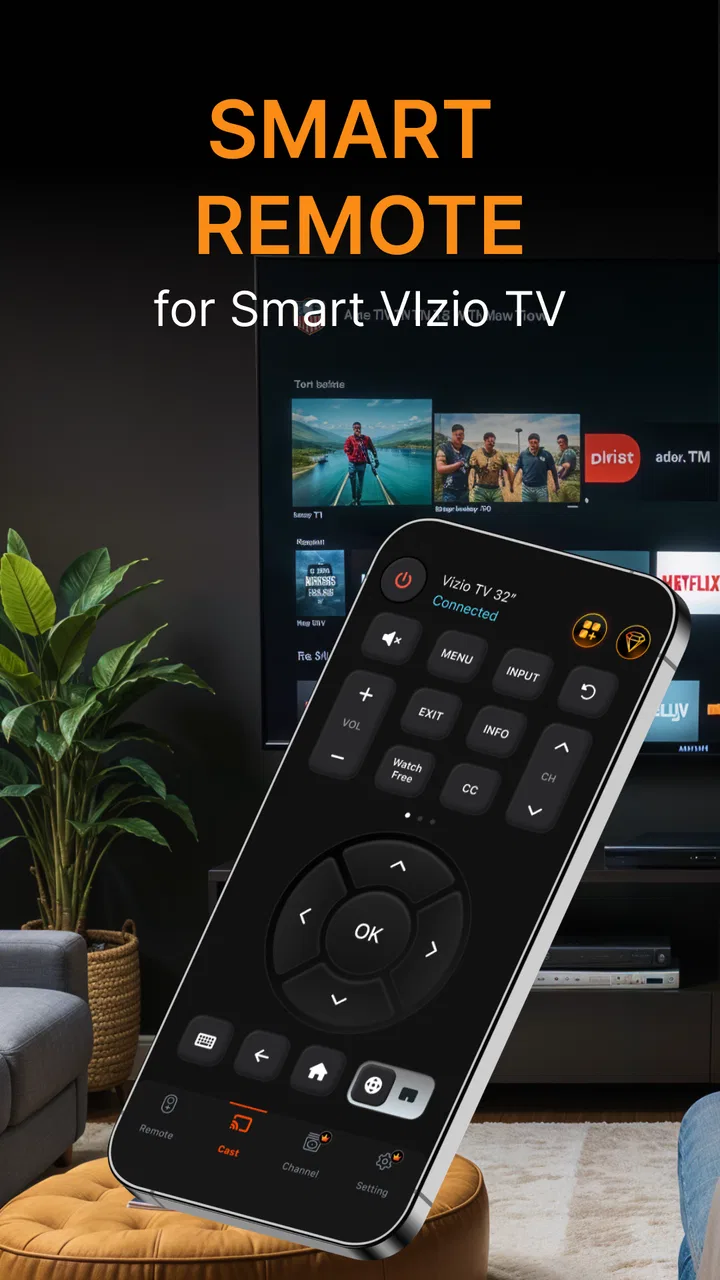
I tested Smart Remote For Vizio TV with a simple goal: replace the hunt for a missing physical remote with something already sitting in my hand. That sounds straightforward, but remote-control apps live or die by setup details. When everything lines up, the app is convenient for changing channels, adjusting volume, and sending photos or videos to a compatible Vizio television. When the connection is wrong, it can look as if the app is broken even when the real problem is the phone, television, or home network.
That distinction is the most useful thing to understand before installing it. This is a free tools app from LeoStudio Global Ltd., aimed specifically at Vizio TV control and smartcasting. It is rated for Everyone, works on devices running Android 7.0 or later, and has reached more than a million installs. I would not treat it as a universal remote for every television brand; its value depends on owning a Vizio TV and having a setup that allows the phone and television to communicate.
Getting past the first connection problems
The first stumbling block is usually not the buttons. It is discovery. A phone remote needs a path to the television, and the most common mistake is assuming that being in the same building is enough. I start by checking that both devices are connected to the same home network, rather than relying on mobile data for the phone while the TV uses Wi-Fi. If the television is connected to a different network name, a guest network, or a range extender that isolates devices, the app may fail to find it.
You May Also Like

 Blood Strike: 2.5 Anniversary
Blood Strike’s Loadouts Turn Every Drop Into a Tactical Gamble
A close look at Blood Strike’s custom loadouts: how fast access to signature weapons reshapes its battle royale rhythm, rewards preparation, and narrows the gap between fights.

 Pandora - Music & Podcasts
Pandora’s Music Is Easy to Start, but Harder to Recover
Pandora’s strength is its low-effort path from a seed to a station. Its weak spot is how much confidence it asks you to place in connection, setup, and quiet recovery.

 8 Ball Pool
 Is Built on Rivalries, Rematches, and Routine
A close look at the rivalries, rematches, shared routines, and unanswered safety questions that turn a quick pool match into a persistent mobile community.

 Samsung Music
’s Quiet Strength Is Playing What You Already Own
Its reach comes less from spectacle than from dependable access to a personal library. That simplicity is both the app’s strongest retention engine and its ceiling.

 AccuWeather: Weather Radar
AccuWeather Review: A Quick, Clear Forecast for Everyday Decisions
For everyday plans, the best forecast is the one you can understand quickly. AccuWeather makes rain timing, radar, and local conditions easy to act on, with a few trade-offs.

 Hill Climb Racing
Why Hill Climb Racing Still Turns Crashes Into One More Run
A tiny car, a bumpy hill and one more upgrade: Hill Climb Racing keeps resurfacing because its simple chaos makes every near-miss feel personal.
More From Our News Desk



I also keep the TV awake during the initial attempt. A television that is fully asleep, switched to a power-saving state, or still completing its startup may not respond immediately to a discovery request. Turning the screen on with its physical controls, waiting briefly, and then opening the remote app is a more reliable sequence than repeatedly tapping a scan button while the TV is idle.
The app’s appeal is that it puts familiar remote actions on the phone, but the phone still has to be usable as a remote. I therefore check the basics before blaming the software: Wi-Fi is enabled, the phone has a stable connection, and the TV is not in the middle of an update or input change. These are small checks, yet they prevent a lot of unnecessary reinstalling.
One practical detail is worth remembering: the phone is not automatically an infrared wand just because it contains a remote app. Smart control generally depends on network communication, so pointing the phone at the television is less important than keeping the devices connected correctly. That is why the app can be useful from the sofa, but also why it may not help when the TV is offline or disconnected from the home network.
A setup routine that saves time
My preferred setup routine is deliberately boring. I wake the Vizio TV, confirm which network it is using, connect the phone to that same network, and then open Smart Remote For Vizio TV. I give the app a moment to locate the television instead of immediately closing it. If more than one compatible device appears, I select the one that is actually in the room and test a low-risk command such as volume adjustment before trying to launch content.
Testing volume first is useful because it gives immediate feedback without interrupting a film or changing the input. Once that works, I try navigation and then the smartcast functions. This order separates basic control from media sharing. If volume works but a photo or video does not appear, I know the connection is at least partly successful and can focus on the casting workflow rather than starting the whole setup again.
Another good habit is to avoid setting up the app while the phone is moving between networks. For example, if I am walking around the house and the phone changes from a main router connection to an extender, discovery can behave inconsistently. I finish the pairing process in one place, then test the remote from the seating area. That simple approach makes the result easier to judge.
Using it during an ordinary evening
A realistic use case is a family movie night where the original remote has disappeared under cushions. I open the app, select the television, adjust the volume, and use the phone instead of stopping the film search to look for the remote. Later, if I want to show a short video or a group of photos on the larger screen, the smartcast side becomes more relevant than the remote buttons themselves.
For this kind of situation, the app is at its best as a backup that is always nearby. It is also handy when someone wants to control the TV while the physical remote is in another room. I like having one device for both ordinary commands and sharing personal media, although I still keep the physical remote available for emergencies because a phone-based solution depends on battery, connectivity, and a responsive television.
The media workflow deserves a little patience. I would first test one photo or one short video rather than selecting a large collection immediately. If that succeeds, I would expand the selection. This makes it easier to identify whether a problem comes from the chosen file, the connection, or the TV’s response. It is a small but non-obvious advantage of testing in stages: the app becomes easier to troubleshoot because every step has a clear result.
Recovering the workflow when control stops responding
When a command fails, I avoid pressing it repeatedly. Repeated taps can create confusion because a delayed response may arrive after several requests, producing multiple volume changes or unexpected navigation. I wait briefly, look at the TV, and then try one command again. If there is still no response, I close and reopen the app before changing several other settings at once.
If the television disappears from the device list, I restart the connection in a controlled order. I leave the TV powered on, confirm the phone’s network, reopen the app, and search again. If that does not help, restarting the phone and television can clear a temporary communication problem. I see this as a recovery step, not a guarantee: if the TV itself has lost network access, no remote interface on the phone can restore that connection by magic.
It is also worth separating a failed command from a failed session. If the navigation buttons respond but a cast attempt does not, I do not immediately remove the app. I return to a basic remote command, then retry the media action with a smaller selection. This two-stage check is especially helpful because controlling the TV and sending media are related but not identical tasks.
Notifications or interruptions on the phone can make a remote session feel unreliable. I keep the app in the foreground while testing and avoid locking the phone between every command. For longer viewing, I pay attention to the phone’s battery because a dead phone means a dead remote, even if the television itself is working perfectly. That is one area where a physical remote remains more dependable.
What to do when the app is not the real problem
Sometimes the correct diagnosis is that Smart Remote For Vizio TV is not responsible. If the TV cannot connect to the network, the app has nothing to discover. If the router blocks communication between wireless devices, the phone and TV may both show a strong signal while remaining unable to talk to each other. In that case, moving both devices to the ordinary home network rather than a guest network is a sensible general check.
The television’s own state matters too. A frozen screen, an unresponsive physical button, or a problem affecting the TV’s built-in smart functions will usually affect a phone remote as well. I test the TV with its local controls when possible. If those controls do not work, I focus on the television rather than changing app settings. This avoids the common trap of treating every remote failure as an app failure.
The same logic applies to casting. A video that plays poorly on the phone may not behave properly on the television, and a file that the TV cannot handle is not necessarily evidence of a broken remote connection. I begin with a familiar, uncomplicated item, then try other media. Keeping the test simple gives a much clearer answer than sending a large mixed library and guessing what went wrong.
There is also a practical question about expectations. A network-based remote is convenient, but it is not a replacement for every function of a dedicated Vizio controller in every circumstance. A physical remote can work when the home network is down and does not need charging. The app earns its place through convenience, especially when the original remote is missing, but I would not make it the only control method in a home where the TV must always be accessible.
How it compares with the usual alternatives
The obvious alternative is the original physical remote. That remains the simplest choice for instant power control and basic reliability. Smart Remote For Vizio TV is more attractive when the physical remote is lost, when several people already carry phones, or when sharing photos and videos is part of the evening. The trade-off is that the app introduces network and phone-related points of failure.
Another alternative is a general universal-remote app. Those can be useful for households with several brands, but a Vizio-focused tool is easier to understand when the main television is a Vizio model. I prefer a focused app when I want a straightforward path to that one screen. I would choose a broader solution instead if I needed to operate televisions, streaming boxes, and audio equipment from different manufacturers in one interface.
There is also the television maker’s own control software, where available. A manufacturer-specific option may be preferable for someone who wants a wider range of official device functions or already uses a connected-TV ecosystem. Smart Remote For Vizio TV makes more sense for a reader whose priority is a simple phone remote and smartcast access rather than managing a larger household of connected products.
Who should install it, and who should skip it
I would recommend trying it if you own a Vizio TV, frequently misplace the remote, and keep your phone and television on a stable home network. It is also a practical choice for households that regularly show personal photos or videos on the big screen. The free entry price makes testing easy, while optional in-app purchases range from $2.99 to $29.99 per item, so I would review the purchase screen carefully before paying for anything.
The app has a 4.6 average from around sixty-one thousand ratings, with roughly ten thousand written reviews, which suggests that many users find the basic idea useful. I still would not use that reception as a substitute for checking compatibility with my own setup. Remote apps can perform very differently depending on the television’s network state, router arrangement, and the phone being used.
I would skip it if you need a remote that works with no Wi-Fi, if your TV is not a Vizio model, or if you want one controller for a complicated collection of devices. I would also think twice if the phone is usually shared, has a weak battery, or is often unavailable during viewing. In those situations, the physical remote or a dedicated universal controller is a better primary option.
My practical verdict after using it
The strongest reason to choose this app is convenience, not magic. It can turn a phone into a useful Vizio TV companion, and its smartcast purpose gives it more value than a basic button-only remote. I found the experience most convincing when I treated setup as a network check, tested ordinary controls before media sharing, and recovered from problems one step at a time.
Its weaknesses are equally practical. A phone remote depends on the phone being charged and available, while discovery can fail when the TV and phone are separated by network settings. Those limitations are not deal-breakers, but they mean I would keep the physical remote nearby rather than throwing it away. The app is a backup and a convenience layer, not a universal answer to every television-control problem.
Smart Remote For Vizio TV is currently at version 1.1.20, and its Everyone rating makes it approachable for a broad household audience. My recommendation is simple: install it when you want an affordable way to control a Vizio TV and share media from your phone, then judge it after a careful same-network test. If that connection is stable, this is a useful everyday replacement for a misplaced remote; if your home network is unreliable or you need offline control, choose a physical or broader universal alternative instead.
FAQs for Smart Remote For Vizio TV
01What is Smart Remote For Vizio TV, and how does it work?
Smart Remote For Vizio TV is a mobile remote-control app designed to let you operate a compatible Vizio television from an Android or iOS device. After installing it, you generally connect the phone and TV to the same Wi-Fi network, select the television, and use on-screen controls for navigation, volume, input selection, playback, and other supported functions. Available features may vary by TV model and app version.
02Is Smart Remote For Vizio TV compatible with every Vizio television?
Compatibility is not guaranteed for every Vizio TV. The app usually works best with newer smart television models that support network-based remote control, while older sets may require an infrared-capable phone or may not be supported at all. Before downloading, check the app’s current compatibility information and confirm that your Vizio model, phone, operating system, and network configuration meet the listed requirements.
03Does my phone need an infrared sensor to use Smart Remote For Vizio TV?
In most cases, a network-based Vizio remote app communicates with the television through Wi-Fi, so an infrared sensor may not be necessary. Your phone and TV normally need to be connected to the same local network, and the television must be powered on or discoverable. If the app specifically advertises infrared control, however, that feature requires a compatible phone with built-in IR hardware.
04What should I do if the app cannot find my Vizio TV?
First, make sure the phone and Vizio television are connected to the same Wi-Fi network rather than separate guest, mobile, or extender networks. Restarting the app, TV, phone, and router can also resolve discovery problems. Check whether network-control permissions are enabled on the television and allow the app’s requested permissions. If detection still fails, compatibility limitations or router isolation may be responsible.
05Are there advertisements, subscriptions, or privacy considerations?
Many third-party smart remote applications are free to install but may include advertisements, optional purchases, or subscription features. The exact pricing and advertising model can change with updates, so review the store listing before installing. It is also worth checking the privacy section to understand whether the app collects device information, usage data, or network-related details. Avoid entering sensitive information unless it is genuinely required.
Pros
- Works with most Vizio SmartCast TV models.
- Simple interface with essential remote controls.
- Useful backup when the physical remote is missing.
- Quick pairing on compatible Wi-Fi networks.
- No extra hardware is required for supported TVs.
Cons
- Requires the phone and TV to use the same Wi-Fi network.
- Compatibility may vary across older Vizio models.
- Contains ads or optional in-app purchases.
- Some commands may respond slower than a physical remote.
- Needs network permissions to discover compatible televisions.

Smart Remote For Vizio TV
Gallery